✂️ Recadrage d'Image
Recadrez vos images avec des ratios prédéfinis ou librement. 100% dans le navigateur.
✨ See what this tool can do
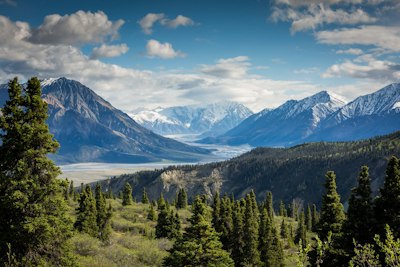
Before
✂️
After — processed
Comment Utiliser
1
Télécharger
Glissez-déposez votre image.
2
Ajuster
Faites glisser les poignées pour sélectionner la zone.
3
Ratio
Choisissez un ratio prédéfini ou libre.
4
Appliquer
Cliquez pour recadrer et télécharger.
Detailed User Guide
Step 1: Upload Your Image
Upload a JPG, PNG, or WebP image. The full image appears in the workspace with a dashed crop overlay.
The cropper workspace — the dashed overlay shows the area to be kept
Step 2: Adjust the Crop Area
You can interact with the crop overlay in two ways:
- Move: Click and drag anywhere inside the dashed overlay to reposition it over your desired area
- Resize: Drag the corner handles (small circles at each corner) to adjust the crop dimensions
- Aspect ratio presets: Use the dropdown to lock to common ratios like 1:1 (Instagram), 16:9 (widescreen), or 9:16 (Stories)
Tip: When a preset ratio is selected, resizing one corner automatically adjusts the other dimension to maintain the ratio.
Step 3: Crop & Download
Click "Crop" to apply. The image is cropped to your selection and the overlay disappears. Click "Download" to save as a PNG.
Best Use Cases
- Social media cropping — Use preset ratios to match platform requirements exactly
- Photo framing — Remove unwanted edges or improve composition (rule of thirds)
- Thumbnail creation — Crop to the most visually interesting part of an image
- Uniform image sets — Apply the same aspect ratio to a series of photos for consistency
Pro Tips
- Cropping never reduces the quality of the remaining pixels — it simply removes unwanted areas
- For portraits, place the subject's eyes along the top third line for pleasing composition
- The 1:1 preset is perfect for Instagram posts; 9:16 for Stories and Reels
- After cropping, you can use the Resizer tool to adjust to exact pixel dimensions
Questions Fréquentes
1:1, 4:3, 16:9, 3:2 et recadrage libre.
Vous pouvez réinitialiser avant de confirmer.
JPG, PNG et WebP.