💧 Ajouter un Filigrane
Ajoutez des filigranes texte ou image. Contrôlez l'opacité et la position.
🖼️ Try with a sample image
Comment Utiliser
1
Télécharger
Glissez-déposez votre image.
2
Type de Filigrane
Choisissez texte ou image.
3
Personnaliser
Définissez l'opacité, la position et la taille.
4
Télécharger
Enregistrez l'image avec filigrane.
Detailed User Guide
Step 1: Upload Your Image
Upload the image you want to protect. The image appears on the canvas workspace.
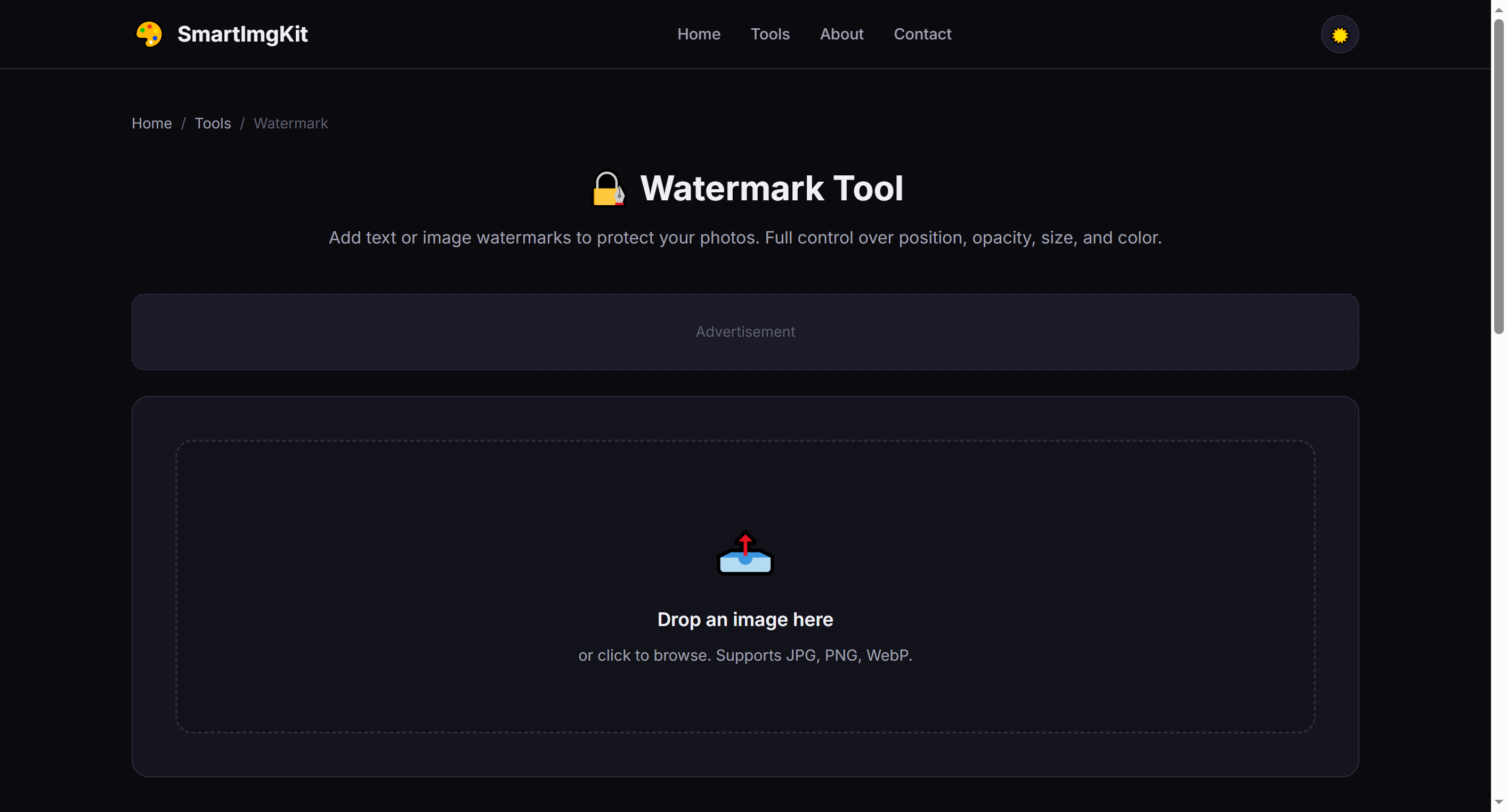
The watermark tool — choose between text or image watermark modes
Step 2: Choose Watermark Type
Toggle between two modes:
- Text Watermark: Enter your text (e.g., brand name, copyright notice). Customize color, font size, and opacity.
- Image Watermark: Upload a logo or signature image (PNG with transparency works best). Adjust opacity to blend naturally.
Step 3: Position & Apply
Select a position from the dropdown: Bottom Right (most common), Bottom Left, Top Right, Top Left, or Center. Then click "Apply Watermark" to render it onto the image. Click "Download" to save.
Tip: For subtle protection, use 30-50% opacity. For stronger branding, use 60-80% opacity with a contrasting color.
Best Use Cases
- Photographer portfolios — Protect images shared online from unauthorized use
- Brand marketing — Add logos to social media graphics and promotional images
- Document security — Mark confidential images with "Draft" or company name
- Social media content — Consistent branding across all shared visuals
Pro Tips
- White or light gray text with 40-50% opacity works well on most images without obscuring content
- For image watermarks, use a PNG with transparent background for clean overlay
- Place watermarks in corners to minimize interference with the main image content
- Consider using your website URL as the text — it promotes your brand even if the image is shared
Questions Fréquentes
Oui, téléchargez votre logo ou toute image comme filigrane.
Oui, utilisez le curseur d'opacité.
Il est intégré à l'image téléchargée mais peut être recouvert.