🗜️ Nén Ảnh
Nén JPG, PNG, WebP miễn phí. Giảm đến 90% dung lượng không mất chất lượng.
✨ See what this tool can do

Before
📦
After — processed
Gốc
Đã nén
Cách Sử Dụng
1
Tải Lên
Kéo thả ảnh JPG, PNG hoặc WebP.
2
Điều Chỉnh
Dùng thanh trượt để cân bằng chất lượng.
3
Nén
Nhấp Nén và xem mức giảm.
4
Tải Xuống
Lưu ảnh đã nén.
Detailed User Guide
Step 1: Upload Your Image
Click the dropzone or drag and drop a JPG, PNG, or WebP image. The original file size and dimensions will be displayed next to the preview.
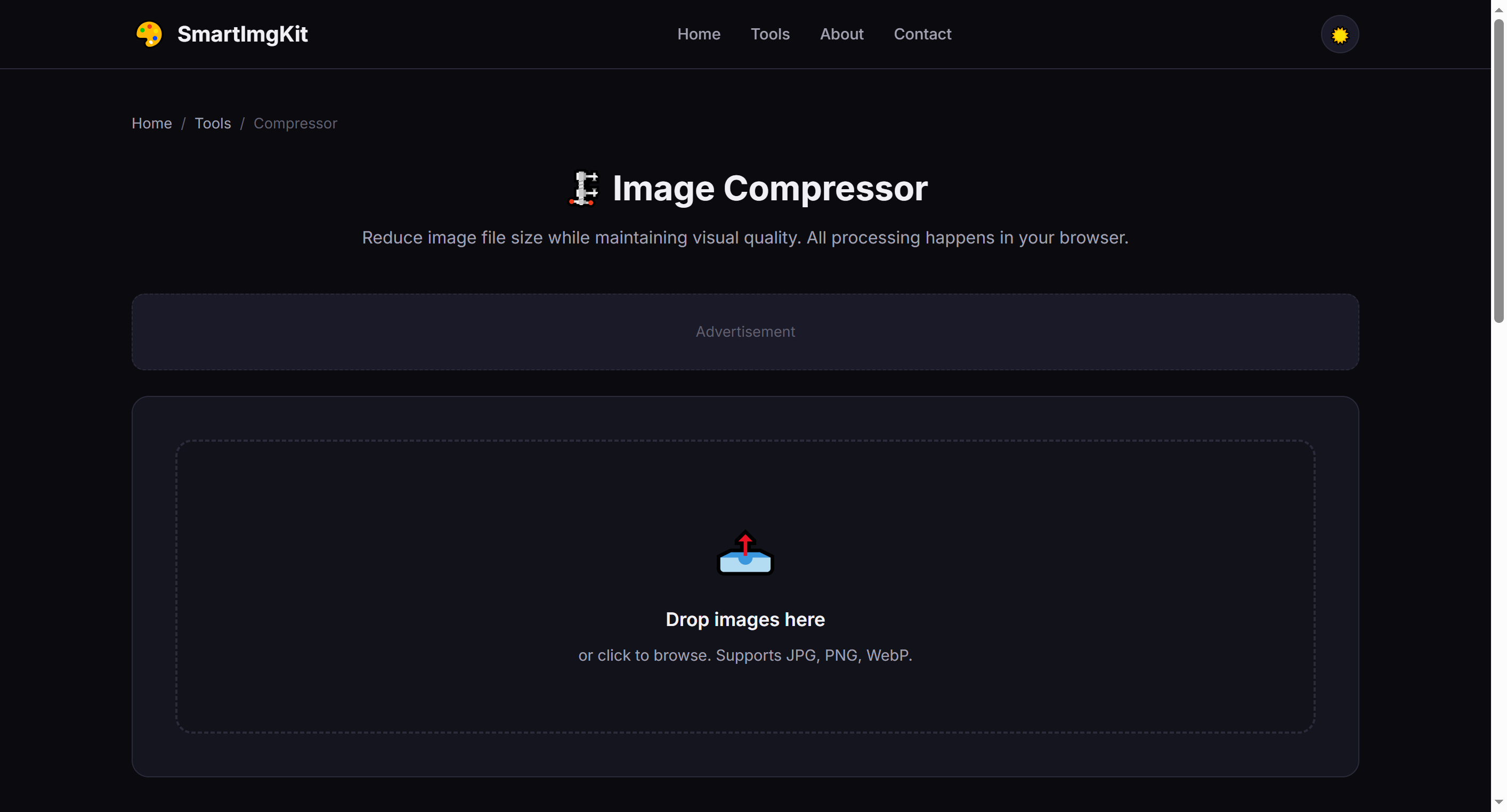
The compressor interface — upload an image to see original size and dimensions
Step 2: Adjust Quality Settings
Use the Quality slider (10%–95%) to control the compression level:
- 80-95% — Minimal quality loss, good for photos you want to keep sharp
- 50-70% — Balanced size reduction, ideal for web use
- 10-40% — Maximum compression, smallest file size (more visible quality loss)
Tip: PNG files use lossless compression — quality slider has no effect on PNG output. Convert to JPG or WebP first if you need smaller files.
Step 3: Compress & Compare
Click "Compress" to process. The tool shows both original and compressed versions side-by-side, along with the exact file size and percentage saved. Click "Download" to save the optimized image.
Best Use Cases
- Website optimization — Reduce page load times by compressing hero images and galleries
- Email attachments — Stay under size limits when sending photos
- Social media uploads — Faster uploads without noticeable quality loss at 70-80%
- Storage saving — Batch-compress photo collections (process one at a time)
Pro Tips
- For photos with text or fine details, stay above 70% quality to keep text readable
- WebP format typically gives 25-35% smaller files than JPG at the same quality
- PNG compression preserves transparency but won't reduce file size as much as JPG/WebP
- Compare the before/after preview to find your personal quality threshold
Câu Hỏi Thường Gặp
Ở mức 80-90%, tổn thất không đáng kể nhưng kích thước giảm mạnh.
Tối đa 30MB mỗi file.
Có, mọi xử lý diễn ra cục bộ trong trình duyệt.