🎨 Image Grayscale & Color Effects
Convert images to grayscale, sepia, invert colors, and more. All processing happens in your browser.
✨ See what this tool can do
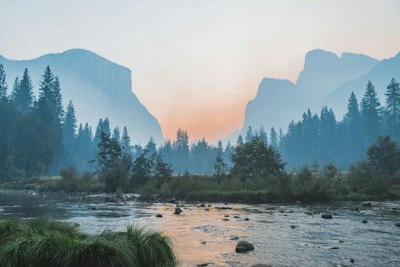
Gốc
🎨
After — color effect
How to Use
1
Upload
Select an image from your device or try with a sample.
2
Choose Effect
Pick grayscale, sepia, invert, or other effects.
3
Download
Click Apply to process, then Download to save.
Detailed User Guide
Step 1: Upload Your Image
Click the dropzone or drag and drop an image file (JPG, PNG, or WebP). The original image will be displayed and you can preview the effect immediately.
Step 2: Choose a Color Effect
Select from six built-in effects:
- Grayscale — Convert to black & white. Great for documentary or minimalist looks.
- Sepia — Warm brown vintage tone. Classic for portraits and landscapes.
- Invert — Negative film effect. Reverses all colors.
- Posterize — Reduces the number of colors for a poster / pop art look.
- Blur — Softens the image. Useful for backgrounds or dreamy effects.
- Sharpen — Enhances edges for a crisper look.
Tip: Grayscale is the most searched effect — perfect for creating B&W social media posts that stand out.
Step 3: Apply & Download
Click "Apply Effect" to process the image, then click "Download" to save the result as a PNG file.
Best Use Cases
- Social media — B&W or vintage sepia posts get more engagement
- Product photography — Grayscale makes product details pop
- Art projects — Invert or posterize for creative effects
- Backgrounds — Blur an image to use as a soft background
Frequently Asked Questions
PNG preserves the full grayscale range without compression artifacts. If you need a smaller file, use the Image Compressor tool after downloading.
Currently each effect applies at 100% strength. For adjustable intensity, use the Image Adjustment tool to fine-tune brightness and contrast before applying an effect.
Yes — transparency is preserved for all effects except Blur and Invert, which fill transparent areas with black. For best results, use on opaque images.