🖼️ 图像裁剪器
Crop images with preset aspect ratios or free-form selection. Perfect for social media posts.
图片裁剪器:自由裁剪或按预设比例裁剪
图片裁剪器让你自由裁剪或按预设比例裁剪。全部在浏览器本地处理,无需上传、无需注册。
裁剪照片为 Instagram、Facebook、Twitter 尺寸
裁剪照片为 Instagram、Facebook、Twitter 尺寸。这是人们使用图片裁剪器最常见的理由之一——几秒内即可在浏览器中完成。
去除截图多余边缘
去除截图多余边缘。这是人们使用图片裁剪器最常见的理由之一——几秒内即可在浏览器中完成。
按比例预设框选主体
按比例预设框选主体。这是人们使用图片裁剪器最常见的理由之一——几秒内即可在浏览器中完成。
图片裁剪器所需的一切功能
让图片裁剪器快速、私密且免费的强大功能。
精确尺寸
按精确像素或百分比设置,像素级精准。
锁定比例
自动保持比例,避免拉伸变形。
自由与预设
自由裁剪或使用社交媒体现成的比例预设。
100% 隐私
全部本地处理——图片不离开浏览器。
永久免费
无需注册、无水印、无隐藏限制。
跨平台
任意现代浏览器设备可用。
How to Use
Upload
Select the image you want to crop.
Adjust Selection
Drag the overlay to move, or use handles to resize. Pick an aspect ratio preset if needed.
Crop & Save
Click Crop and download the result.
Detailed User Guide
Step 1: Upload Your Image
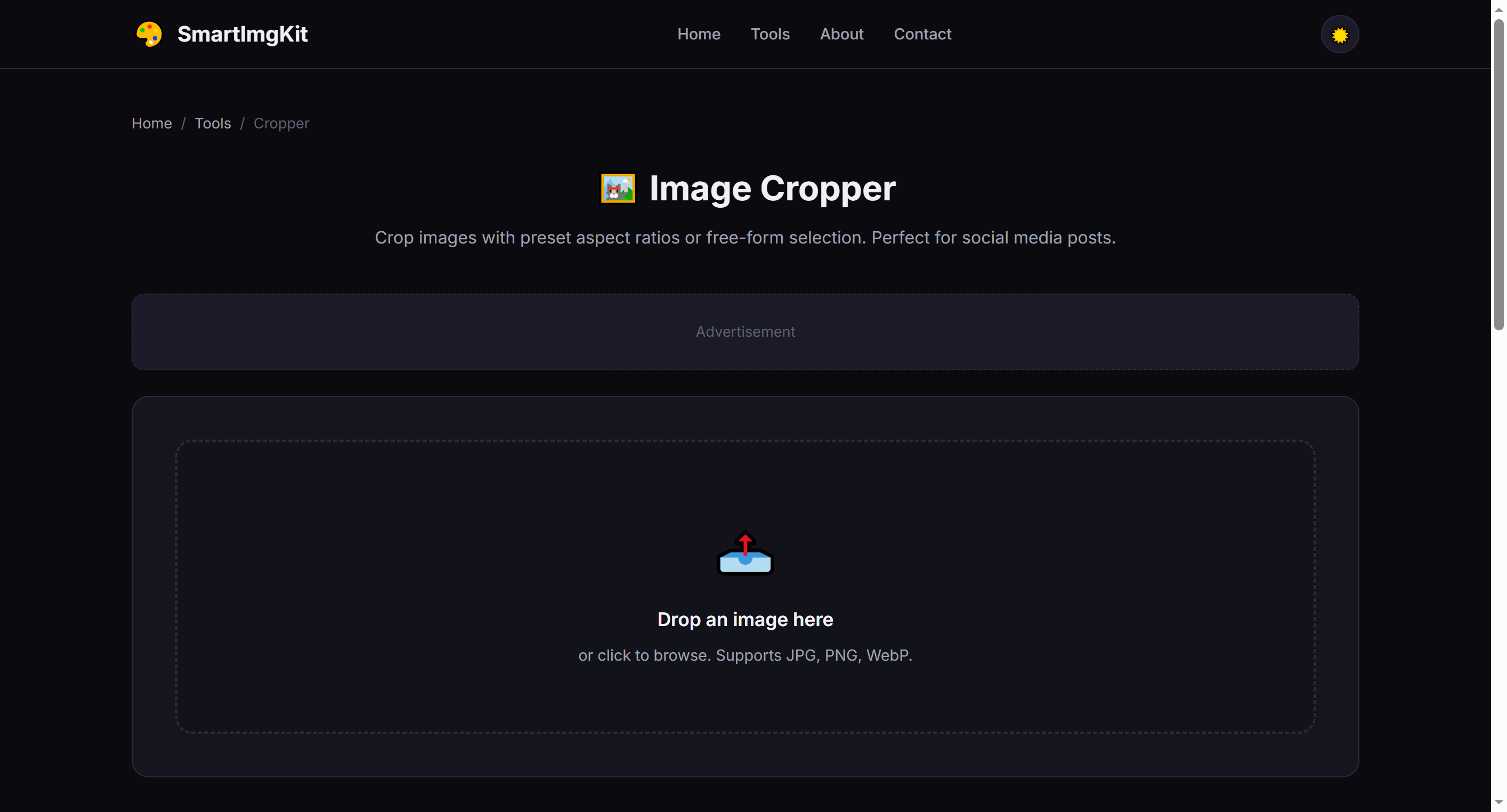
Upload a JPG, PNG, or WebP image. The full image appears in the workspace with a dashed crop overlay.
Step 2: Adjust the Crop Area
You can interact with the crop overlay in two ways:
- Move: Click and drag anywhere inside the dashed overlay to reposition it over your desired area
- Resize: Drag the corner handles (small circles at each corner) to adjust the crop dimensions
- Aspect ratio presets: Use the dropdown to lock to common ratios like 1:1 (Instagram), 16:9 (widescreen), or 9:16 (Stories)
Step 3: Crop & Download
Click "Crop" to apply. The image is cropped to your selection and the overlay disappears. Click "Download" to save as a PNG.
Best Use Cases
- Social media cropping — Use preset ratios to match platform requirements exactly
- Photo framing — Remove unwanted edges or improve composition (rule of thirds)
- Thumbnail creation — Crop to the most visually interesting part of an image
- Uniform image sets — Apply the same aspect ratio to a series of photos for consistency
Pro Tips
- Cropping never reduces the quality of the remaining pixels — it simply removes unwanted areas
- For portraits, place the subject's eyes along the top third line for pleasing composition
- The 1:1 preset is perfect for Instagram posts; 9:16 for Stories and Reels
- After cropping, you can use the Resizer tool to adjust to exact pixel dimensions