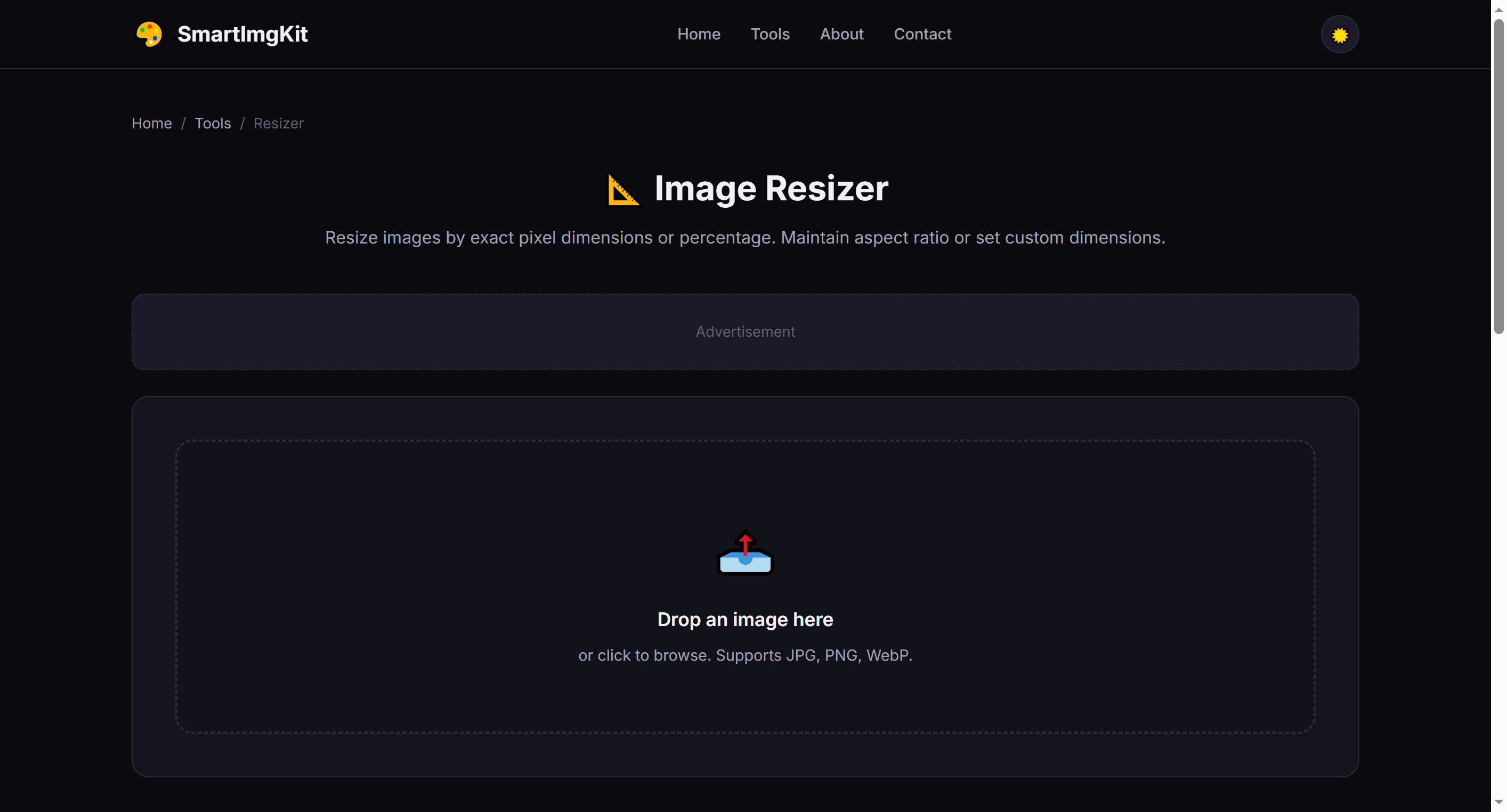
📐 图像缩放工具
Resize images by exact pixel dimensions or percentage. Maintain aspect ratio or set custom dimensions.
图片缩放器:按像素或百分比缩放图片
图片缩放器让你按像素或百分比缩放图片。全部在浏览器本地处理,无需上传、无需注册。
为社交媒体头像缩放照片
为社交媒体头像缩放照片。这是人们使用图片缩放器最常见的理由之一——几秒内即可在浏览器中完成。
缩小图片用作邮件缩略图
缩小图片用作邮件缩略图。这是人们使用图片缩放器最常见的理由之一——几秒内即可在浏览器中完成。
批量将商品图缩放为统一尺寸
批量将商品图缩放为统一尺寸。这是人们使用图片缩放器最常见的理由之一——几秒内即可在浏览器中完成。
图片缩放器所需的一切功能
让图片缩放器快速、私密且免费的强大功能。
精确尺寸
按精确像素或百分比设置,像素级精准。
锁定比例
自动保持比例,避免拉伸变形。
自由与预设
自由裁剪或使用社交媒体现成的比例预设。
100% 隐私
全部本地处理——图片不离开浏览器。
永久免费
无需注册、无水印、无隐藏限制。
跨平台
任意现代浏览器设备可用。
How to Use
Upload
Select the image you want to resize.
Set Dimensions
Enter width and height in pixels, or use the percentage slider.
Resize & Save
Click Resize and download the result.
Detailed User Guide
Step 1: Upload Your Image
Upload a JPG, PNG, or WebP image. The tool automatically reads the original dimensions and populates the width and height fields.
Step 2: Set New Dimensions
You have two ways to resize:
- Exact pixels: Enter width and height in pixels. Check "Keep aspect ratio" to automatically maintain proportions when changing one dimension.
- Percentage: Use the slider to scale by percentage (10%–200%). This is the quickest way to make an image half-size or double-size.
Step 3: Resize & Download
Click "Resize" to process. The preview updates to show the new dimensions. Click "Download" to save the resized image with -resized appended to the filename.
Common Social Media Sizes
- Instagram Post — 1080 × 1080 px (square) or 1080 × 1350 px (portrait)
- Instagram Story / Reel — 1080 × 1920 px (9:16)
- Twitter / X Header — 1500 × 500 px
- Facebook Cover — 820 × 312 px
- LinkedIn Banner — 1584 × 396 px
- YouTube Thumbnail — 1280 × 720 px
Pro Tips
- Enlarging an image beyond its original size reduces sharpness — use AI upscalers for better results
- Reducing size generally maintains excellent quality thanks to high-quality canvas scaling
- Use the percentage slider for quick batch-like scaling (50% = half dimensions, 25% = quarter area)
- For print, aim for 300 DPI. A 1200 × 1800 px image at 300 DPI prints at 4 × 6 inches